Order & delivery
What you need to know
1. We'll send you the order confirmation
You'll receive an order confirmation email from Optus to keep handy.
2. We'll advise you of the connection date
We'll then advise you of your connection date (or tech appointment, if required)
3. Your modem & booster will be delivered
Your modem (and booster, if ordered) will be delivered before your connection date
Set up My Optus app
Download My Optus app so you can:
- Track your installation appointment, modem and booster delivery
- Change account settings
- Access our Living Network features
- Manage your account on the go
- Receive tailored, technical support through our nbn Assist feature
- Message us for nbn assistance, and more
Click here for more help setting up My Optus app.
Prepare for installation
A technician appointment is not always necessary. We’ll confirm with you via SMS or email.
Skip ahead to connect your modem and booster if a technician isn't required.
If you're having a technician install nbn, understand how to prepare and what will happen during the appointment. See Installation FAQs below.
Then connect your modem and booster.
We'll advise you what time your technician appointment is via SMS and email.
The technician will arrive on a weekday (Monday - Friday), between the following time slots:
- Morning: 8am - 12pm
- Afternoon: 1pm - 5pm
Note. Installation will typically take between 1-2 hours from when the technician arrives. Some complex installations can take up to 8 hours longer.Some complex installations can take longer.
What happens depends on the nbn technology type being installed.
Fibre to the Premises (FTTP)
These types of connections require:
- A utility box – installed on an outside wall of your premises
- A connection box – installed on the inside of your premises
Fibre to the Node (FTTN) & Fibre to the Building (FTTB)
Often existing phone sockets can be used to connect to the nbn network. If not, a technician will attend and confirm where your can connect.
Fibre to the Curb (FTTC) & nbn Hybrid Fibre Coaxial (HFC)
An nbn connection box will be installed inside your premises, if it’s not already available.
You’ll be notified if an nbn technician is required to come inside to complete any works.
Prepare for your technician appointment by:
- Organising someone aged 18+ to be home for the whole appointment
- Getting landlord permission if you're renting
- Considering where you'd like your modem to be - see our modem positioning tips. In some cases, the technician will also discuss the location of your modem with you
Yes, you’ll need approval from your landlord or property manager because nbn installation may involve work on the property, such as drilling, cabling, or attaching equipment to building walls or fittings.
If you haven’t received the necessary approval, the installation will not proceed.
To make this easier, download this Renters Permission Template and send it to your landlord or property manager, so they can complete and return to you.
We recommend getting written approval before booking your appointment to ensure a smoother process.
We recommend not disconnecting your existing service until your new service is up and running.
If your existing service is not with Optus, find out about how to switch your home or office phone number to Optus.
You’ll need to know what nbn technology type has assigned to your home or business so you can follow the relevant modem and booster setup instructions and get connected.
To confirm your nbn technology type and set up your modem and booster, see below.
Confirm your nbn technology type
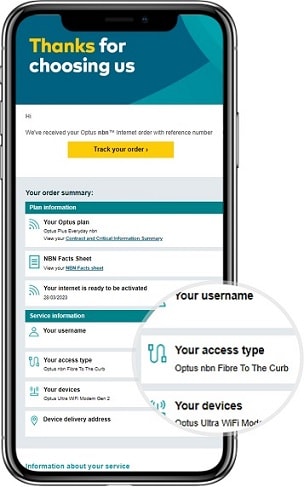
Set up your modem & booster
Your nbn service will be activated on the date we advise and charges will then commence.
However, your modem will arrive before your activation date, so be sure to connect it in advance.
If you've ordered a booster separately, this will arrive within 5 - 10 business days.
Quick Start Guides
To connect your modem and booster, use the Quick Start Guide in your self-install kit, or access it below. Follow the instructions specific to your nbn technology type within the guide.
Optus Ultra WiFi modem (Gen 2)
Download the Quick Start Guide below. For extra help, see Setting up your Optus Ultra WiFi (Gen 2) Modem
Optus Ultra WiFi booster (Gen 2)
Download the Quick Start Guide below. For extra help, see Setting up the Optus Ultra WiFi Booster
Have an older modem? Select your modem from these Quick Start Guides.
Using a non-Optus supplied modem? Find help setting up your BYO modem.
Your Optus supplied Gen 2 modem comes with a backup connection via a micro SIM card that uses the Optus Mobile 4G network.
If you are connecting to Optus nbn for the first time, you’ll be supplied the SIM card.
If you already have an existing modem with 4G backup (i.e. 5366LTE modem), you’ll need to eject the SIM card out of the modem and insert it into the new modem.
- Insert the SIM card included with your modem. To do this correctly, see the Optus Ultra WiFi (Gen 2) LTE Modem device guide
- The Internet light on the modem will display as green when connected to nbn, and blue when using 4G backup
For extra set up information, see Setting up your Optus Ultra WiFi (Gen 2) LTE Modem.
Note. Some Optus modems will come with a 4G backup SIM already installed. If yours does, you’ll see a sticker on the box - simply plug in and power on your modem, and it will automatically use the backup service if needed. For Optus nbn, 4G backup will provide you with internet in 4G coverage areas until your full service is installed.
You can also watch our modem set-up videos.
Tips
Once connected, there are ways to improve your service or get more support, if you need it.
Find some useful tips to improve your service below:
- Change the default username and password of your modem and WiFi for added security
- Add or remove a speed pack for faster nbn speeds