Understand how to reset your password for OptusNet email.
Note. If we don't have your current contact details listed on your account, you'll be prompted to contact our team for assistance.
Legacy Password Reset
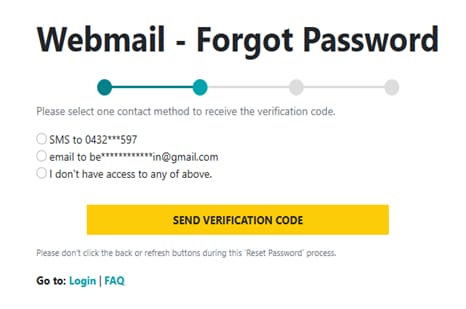
If you've forgotten your Webmail password, you may be able to reset this yourself if you are the primary account holder and we have your current contact details recorded on your account.
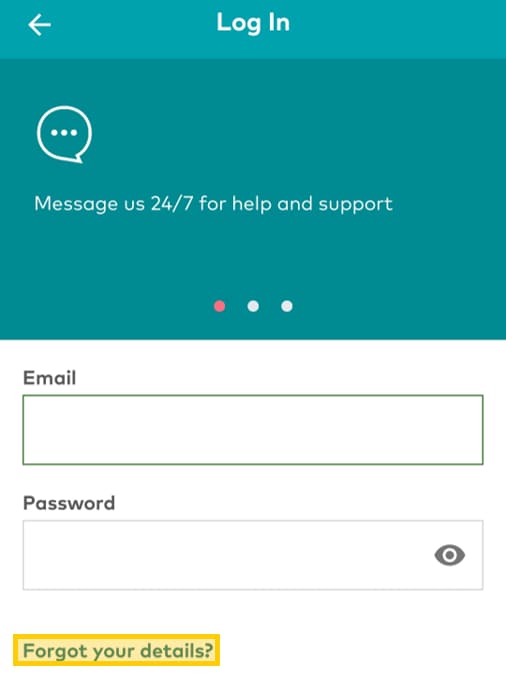
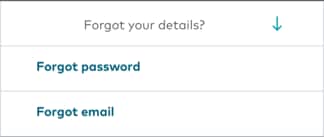
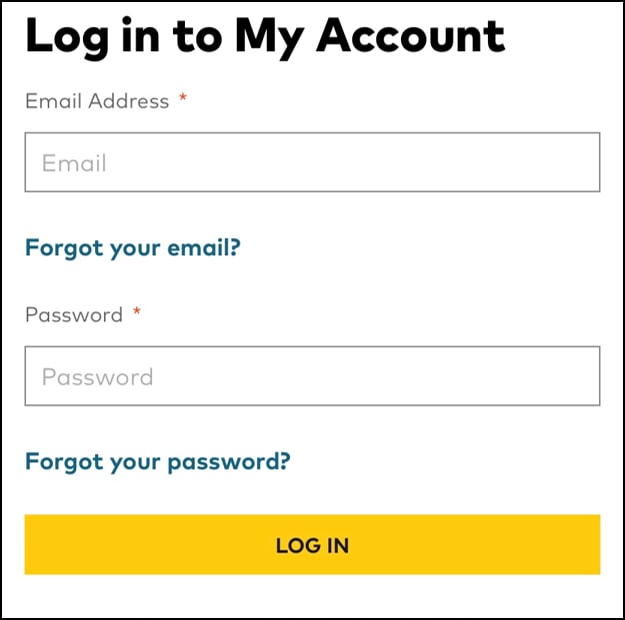
- Click the Forgot Password link on the Webmail login page
- Enter your OptusNet email and date of birth to learn which password reset process applies to you.
- Complete the required information (Full name, date of birth and account number)
- If you have your contact details (i.e. mobile number or alternate email address) listed against your Optus account, these will be displayed on the screen
- Select either SMS or email to receive your verification code
If you didn't or can't receive the verification code your account is blocked or you'd prefer to speak to one of our team for support, please message or call us on 133 937 so we can help reset your password.
Once we've verified you as the account holder:
- You will now be prompted to create a new password for your account
- Your new password will need to include:
- At least 8 characters
- 1 lowercase character
- 1 Uppercase character
- 1 number
- 1 special character
Change password
If you know your Optusnet email password and want to change it, you can do this at any time in the Webmail portal:
- Navigate to the Settings tab
- Click Change Password
- Enter the temporary password provided via email / SMS
- Enter your new password
- Confirm your new password
- Click Save Settings
Note: Once you have updated your password, please remember that if you are accessing your OptusNet email on any third-party email clients (i.e. Outlook) you will need to update the password there as well.
New Password Reset
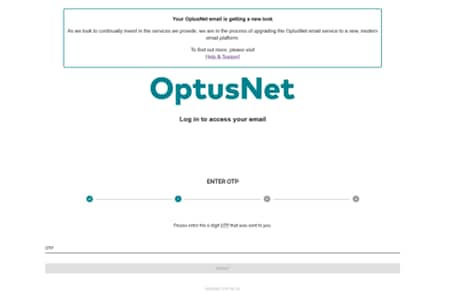
If you've forgotten your Webmail password, you may be able to reset this yourself if you are the primary account holder and we have your verified contact details recorded on your account.
- Click the Forgot Passwordlink on the Webmail login page
- Enter your OptusNet email and date of birth to learn which password reset option applies to you.
- Complete the required information (Full name and date of birth)
- If we have you contact details, we will send you a One-Time-Pass (OTP) code
- You will receive an SMSor email with your One-Time-Pass (OTP) code
- Enter the code provided
If you didn't or can't receive the One-Time-Pass (OTP) code, your account is blocked or you'd prefer to speak to one of our team for support, please message or call us on 133 937 so we can help reset your password.
Once we've verified you as the account holder:
- You will be prompted to create a new password
- Your new password will need to include:
- Minimum 12 characters
- Includes at least 1 uppercase
- Includes at least 1 lowercase
- Includes at least 1 number
- Password must contain at least 1 non-alphanumeric character/s
- Maximum of identical characters is 3
Note: Once you have updated your password please remember that if you are accessing your OptusNet email on any third-party email clients (i.e. Outlook) you will need to update the password there as well.
Change password
If you know your Optusnet email password and want to change it at anytime, you can do this in the Webmail portal:
- Navigate to the Settings tab
- Choose Account
- Click Change Password
- Enter your current password
- Enter your new password
- Confirm your new password
- Click OK
Note: Once you have updated your password, please remember that if you are accessing your OptusNet email on my third party email clients (i.e. Outlook) you will need to update the password there as well.