APNs & technical settings for Mobile Broadband & Home Wireless Broadband
An APN or Access Point Name is an authentication setting that allows your device to connect to specific services on the Optus Mobile Network. This article covers the following APN topics:
APN info
Changing your APN
More technical settings
Should I change my APN?
If your Mobile Broadband service is working then you do not need to change or set up your APN. If, however, you're unable to connect and receive an error message '619' or '628' your APN will need to be changed.
You may also need to change your APN if you've:
- Changed your rate plan recently; Your APN needs to match your plan
- Changed the SIM card in your device
- Using a different/new device
- Changed from a Prepaid to Postpaid Mobile Broadband offer (or vice-versa)
APN List
Please note: It is imperative that you choose the correct APN to use with your plan/device, otherwise your service will not function correctly.
|
Service type |
Plan name |
APN to use |
|
Postpaid Mobile Broadband |
Shared Data Plans & My Mobile Broadband Plans |
connect |
|
Shared Data Plans for iPad & My iPad Plans |
connectme |
|
|
Cap Plans Power Pack Plans |
connectcap |
|
|
Data Cap Data Cap Plus Data Cap Plus Voice |
connectcap & mms |
|
|
BMB (Business Plans) 3G & 4G* Plans |
yesbusiness |
|
|
All Other 3G & 4G* Plans |
connect |
|
|
Prepaid Mobile Broadband |
iPad & Tablet Plans |
connectme |
|
All other Prepaid 3G Plans |
preconnect |
|
|
All other Prepaid 4G* Plans |
connect |
|
|
Home Wireless Broadband |
Home Wireless Broadband Plans |
LTEBROADBAND |
*To take advantage of 4G services you must be on a 4G plan and have a compatible device.
Add / update your APN: USB Modem
Follow the steps below
(Windows & Mac OS-X)
-
Open your Optus Mobile Broadband application
- Click the 'Tools' (A) menu then select 'Options' (B)
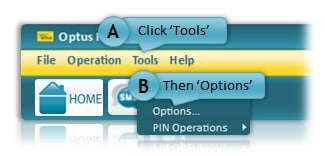
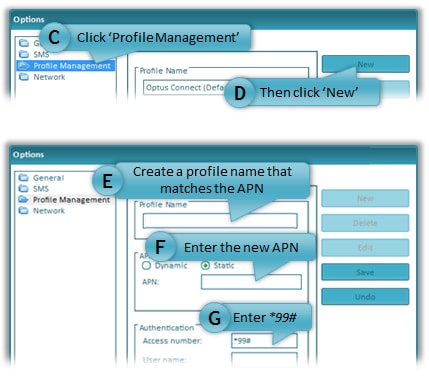
- In the 'Options' window. Select 'Profile Management' (C) then click 'New' (D) (image below)
- In the 'Profile Name' field (E): Enter a name that is easily identifiable as the new APN
- In the APN field (F): Enter your plan's APN, exactly as given in the APN List
- In the 'Access number' field (G) ensure *99# is entered
- For Mac OS-X only: The authentication option to select is 'CHAP'
- Leave all other fields blank
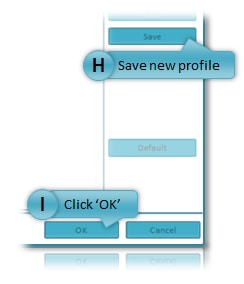
- Optional: Click the 'Default' button if you would like this new APN profile to be preselected in the 'Profile Name' drop-down list on the main connection screen.
- Click 'Save' (H) then 'OK' (I) to return to the main connection screen
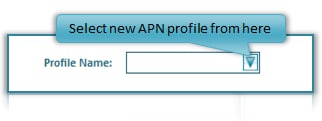
- Please note: You should not use your new APN profile unless your plan has changed. Once your new plan takes effect, remove and re-insert your modem to ensure your new network settings are refreshed then select your new APN from the drop-down list in the main connection screen (Example below).
Add / update your APN: iPad
Please note: It is unlikely that your iPad APN settings will need to be changed, however in the event of a connection problem, we have provided these instructions or you can or refer to the full technical settings list below
- Use our Device Manuals or follow the steps below
- From your Home Screen: Tap 'Settings' (Turn Wi-Fi off)
- Tap 'Mobile Data' / 'Cellular Data'
- Tap 'APN Settings'
- Enter the APN exactly as given in the APN list
- Leave the username / password field blank
- Completely switch off your iPad - by holding down the sleep/wake button for 5 seconds and dragging the red slider across.
- Restart your iPad by holding down your sleep/wake button until the Apple logo appears
- Your iPad will now use the new APN
Add / update your APN: Android Tablets
Please note: Instructions can differ with the Android version you have installed, these are the most commonly used settings/fields
- Use our Device Manuals or follow the steps below
- From Your Home Screen: Tap 'Applications'
- Tap 'Tap Settings'
- Tap 'More Settings'
- Tap 'Wireless & Network'
- Tap 'Mobile Networks' then 'Access Point Names' (ie. APNs)
- Select the APN you need or Tap the 'Options' menu (top right) then Tap 'New APN' to add a missing APN
- In the Name field type the 'APN Name' and in the 'APN field' enter the APN from the list above and any other required fields. (Use the full technical settings list below)
- Completely switch off your tablet
- Restart your tablet to use the new APN
More Technical Settings
Mobile Broadband
Some tablets and devices may ask you to fill out further settings when adding or changing an APN, for your reference here is the full list of recommended entries
- Name: Same as APN or your preferred name
- APN: From the list above
- Proxy: Not set or leave blank
- Port: Not set or leave blank
- Username: Not set or leave blank
- Password: Not set or leave blank
- Server: Not set or leave blank
- Home Page / MMSC: Not set or leave blank*
- Primary / MMS Proxy: Not set or leave blank*
- MMS Port: Not set or leave blank*
- MMS Protocol (For Android): WAP 2.0
- MCC: 505
- MNC: 02
- Auth Type: PAP (or CHAP with Mac OS-X)
- APN Type: internet or leave blank*
- Telephone Number: *99#
*If you're on an older Mobile Broadband plan that includes an MMS component and you require these settings, use the details in this article.
Home Wireless Broadband
- Name: Optus Internet
- APN: internet (If data is not working, use: yesinternet)
- 4G APN: LTEBROADBAND
- APN Type: Internet or blank
- Username: Not set or blank
- Password: Not set or blank
- Server: Not set or blank
- MMS Protocol (For Android 2.1 or higher): WAP 2.0
- MMSC: Not set or blank
- MMS Proxy: Not set or blank
- MMS Port: Not set or blank
- MCC: 505
- MNC: 02
- Authentication Type: PAP (or CHAP on some devices incl. Mac OS-X)