Skip to Primary NavigationSkip to ContentSkip to Footer
  • Personal
  • Business
  • Enterprise
  • Deals
  1. Help & Support - Optus/
  2. Articles/
  3. How to access your Optus 5G Wireless Modem settings

How to access your Optus 5G Wireless Modem settings

Before you can change your modem settings, you'll need to log in to your modem's graphical user interface (GUI).

In this article, we'll show you how to locate the gateway address and log in to the modem's GUI.

The below steps are for the Optus Ultra WiFi 5G Home Internet and Nokia FastMile 5G Gateway 3 modems. If you received your modem before 11 October 2021, contact us.
  • Change the default WiFi network name (SSID) and password (WiFi Key)
  • Monitor / view connection status
  • Advanced network configuration
  • Security configuration such as Parental Controls

The gateway address can be found labelled on the bottom of your modem, under admin IP or Web Address.

Depending on the model of your modem, the gateway address may differ.

It will be in the format 192.168.x.x. Enter this address into a web browser, i.e. http://192.168.x.x. 

Note. The following instructions are for use with a desktop or laptop computer:

  1. Ensure sure your modem is switched on and connected to your PC or laptop via Ethernet or WiFi
  2. Open your preferred web browser (Chrome, Internet Explorer, Firefox or Safari)
  3. Locate the admin IP address located on the bottom of your modem. It'll be in the format 192.168.x.x. Enter this address into a web browser, i.e. http://192.168.x.x
  4. If prompted, enter the modem username and password (you can find the username and password printed on the sticker on the bottom of your modem)

Optus Ultra WiFi 5G Home Internet modem

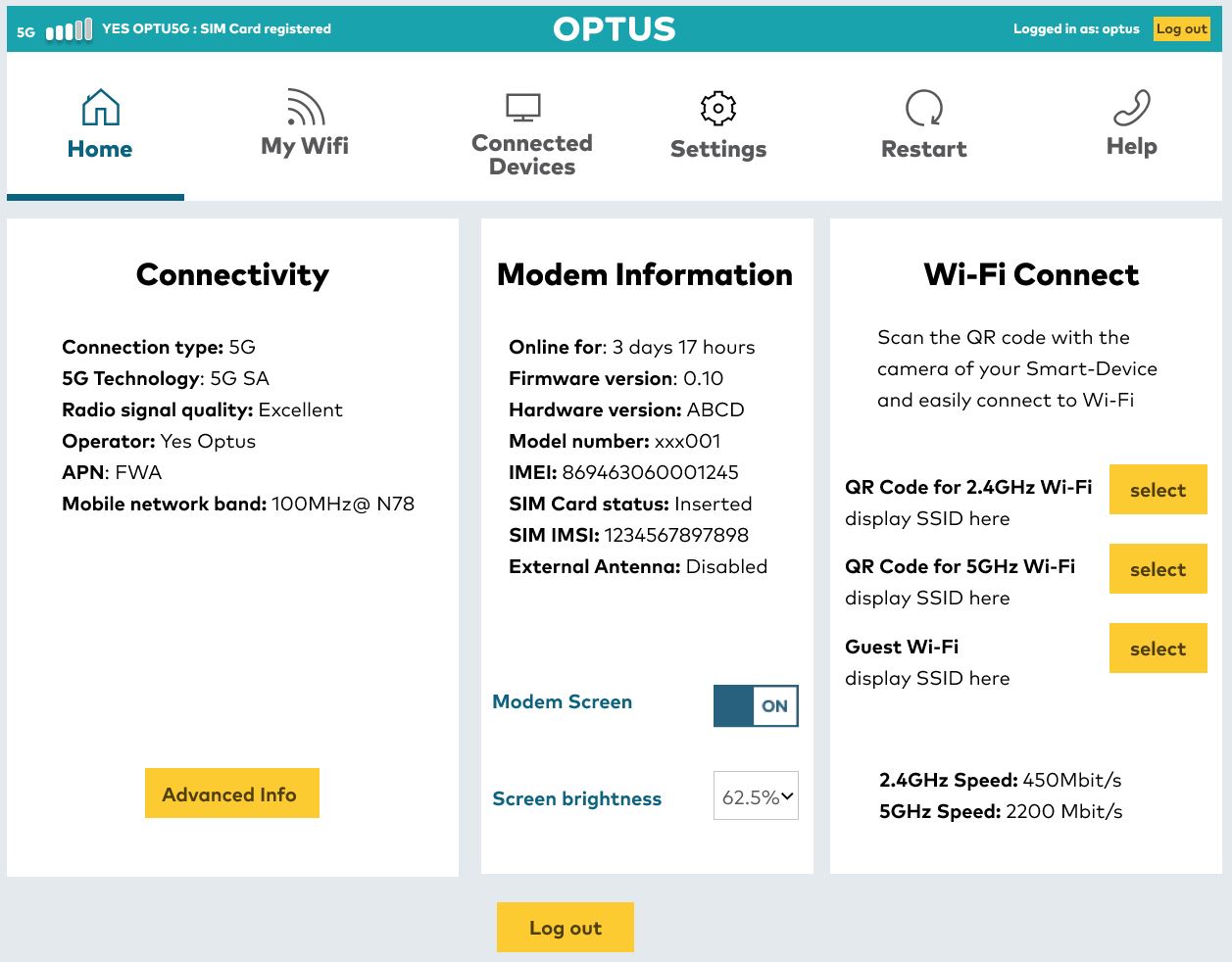
Optus Ultra WiFi 5G Home Internet modem - GUI home page


Nokia FastMile 5G Gateway 3

Nokia FastMile 5G Gateway 3 Graphic User Interface (GUI) Log In screen to enter your username and password


Related Articles

Modem user guides for Home & Office Internet

Setting up your Nokia FastMile 5G Gateway 3 Home Internet modem

5G Home Internet: Changing your WiFi name and password

Setting up the Optus Ultra WiFi 5G Home Internet modem

Popular articles

Orders, deliveries & returns

How to check network status & outages

Home Internet WiFi username & password help

Home Internet troubleshooting

Get in touch

  • Get My Optus app
  • Contact us
  • Find a store

Need more help?


Getting started


Billing and recharge


Troubleshooting


Device Guides


5G Mobile


Broadband & NBN


Manage my account


Optus Sport


Email


5G Home Broadband


Entertainment


Coverage and travel


Home phone


Business


Consumer advice


More from Optus

  • My Optus App
  • SubHub
  • Accessories
  • Student Hub

Customer Service

  • Contact Us
  • Help & Support
  • Store Locator
  • Payment Assistance Policy
  • Feedback & Complaints
  • Report a service outage

About Us

  • About Optus
  • Careers
  • Corporate Information
  • Media Releases
  • About Singtel
  • Accessibility

  • Blog
  • Connect With Us on facebook
  • Connect With Us on instagram
  • Connect With Us on tiktok
  • Connect With Us on linkedin
  • Connect With Us on twitter
  • Connect With Us on youtube

  • Critical Information Summaries
  • Standard Agreement
  • Privacy, Security & Safety

Connect with us

  • Blog
  • Connect With Us on facebook
  • Connect With Us on instagram
  • Connect With Us on tiktok
  • Connect With Us on linkedin
  • Connect With Us on twitter
  • Connect With Us on youtube
  • Critical Information Summaries
  • Standard Agreement
  • Privacy, Security & Safety
© 2026 Singtel Optus Pty Limited
Optus acknowledges the Traditional Custodians of the lands, waters and skies across Australia. We pay our respects to Elders past and present and honour the strength and continuity of the world's oldest living cultures.