Skip to Primary NavigationSkip to ContentSkip to Footer
  • Personal
  • Business
  • Enterprise
  • Deals
  1. Help & Support - Optus/
  2. Articles/
  3. Setting up the Optus Ultra WiFi Booster

Setting up the Optus Ultra WiFi Booster

This article has all the information you need to set up the Optus Ultra WiFi Booster (Gen 2). Refer to the Quick Start Guide for simple setup instructions.

If you have a white Booster, you're using the Optus Ultra WiFi Booster (Gen 1). For setup, refer to the Quick Start Guide.

If you don't yet have a Booster and want more information, visit our article about the Optus Ultra WiFi Booster.

The Optus Ultra WiFi Booster (Gen 2) is compatible with the following modems:

  • Optus Ultra WiFi 5G Internet Modem
  • Optus NBN Ultra WiFi Modem Gen 2

If you'd like to purchase one or more Optus Ultra WiFi Booster, message us 24/7 via My Optus app.
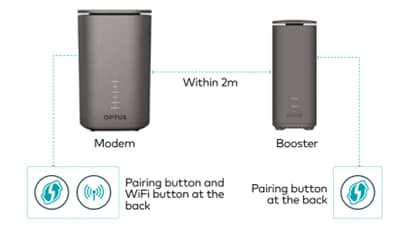
Follow the steps to pair your Booster with the Optus Gen 2 (nbn) modem.

  1. Power on the Booster:
    • Position the Booster next to your Optus modem
    • Make sure the Booster and modem are plugged into the wall and powered on (The power light will take approximately 30 seconds to appear when powered on)
    • After 2 minutes, check that the Booster Power light is solid Green and the Mesh light is flashing Red
  2. Connect the Booster to your Optus modem:
    • You can choose to connect your Booster to the modem using an Ethernet Cable OR using WiFi

Pairing via WiFi

  • Position the Booster about 30cm away from your Optus modem and Power it on
  • Push and hold the pairing button on the back of the Booster for 3 seconds
  • The Mesh light will change from flashing Red to flashing Green
  • Push and hold the pairing button on the back of the modem for 3 seconds
  • Within 4 minutes the Booster's Mesh light will flash Green, then flash Red, before finally turning solid Green. The Booster is now paired to the Optus modem


Pairing via Ethernet

  • Connect the Ethernet cable (white cable with yellow plugs) to a yellow port at the back of the Booster and connect the other end to any yellow port on the Optus modem
  • Within 2 minutes, the Booster Mesh light will turn solid Green, confirming it has paired with the modem.
  • Unplug the Ethernet cable


  1. Move the Booster:
    • Unplug the Booster and position it about halfway between your Optus modem and part of your home where you need a stronger WiFi Signal.
    • Find a spot off the ground, away from large appliances and thick walls, and plug the power cable into the wall
    • The Booster will wirelessly connect to the Optus modem within 3 minutes. During this time, the Booster's Mesh light will flash Green.
    • Once paired, the Booster's Mesh light will turn solid Green.
    • Connected WiFi devices will now automatically use the Booster when nearby


      Note. If you have more than one Booster, repeat the above steps for each.

      Optus modem and Optus Booster shown to be within 2 meters of each other. There's pairing and WiFi buttons at the back of the modem. There's a pairing button at the back of the Booster.

      Follow the steps to pair your Booster with the Optus Ultra WiFi 5G Internet Modem.

      1. Power on the Booster:
        • Position the Booster next to your Optus modem
        • Make sure the Booster and modem are plugged into the wall and powered on (The power light will take approximately 30 seconds to appear when powered on)
        • After 2 minutes, check that the Booster Power light is solid Green and the Mesh light is flashing Red. The Booster is now ready to pair with your Optus modem
      2. Connect the Booster to your Optus modem:
        • You can choose to connect your Booster to the modem using an Ethernet Cable OR using WiFi

      Pairing via WiFi

      • Position the Booster about 30cm away from your Optus modem and power it on
      • Push and hold the pairing button on the back of the Booster for 3 seconds
      • The Mesh light will change from flashing Red to flashing Green
      • Navigate to the "WPS Pairing" screen on the modem and select "Ok" to begin pairing
      • Within 4 minutes the Booster's Mesh light will flash Green, then flash Red, before before finally turning solid Green. The Booster is now paired to the Optus modem


      Pairing via Ethernet

      • Connect the Ethernet cable (white cable with yellow plugs) to a yellow port at the back of the Booster and connect the other end to any yellow port on the Optus modem
      • Within 2 minutes, the Booster Mesh light will turn solid Green, confirming it has paired with the modem.
      • Unplug the Ethernet cable


      1. Move the Booster

        • Unplug the Booster and position it about halfway between your Optus modem and part of your home where you need a stronger WiFi Signal.
        • Find a spot off the ground, away from large appliances and thick walls, and plug the power cable into the wall
        • The Booster will wirelessly connect to the Optus modem within 3 minutes. During this time, the Booster's Mesh light will flash Green.
        • Once paired, the Booster's Mesh light will turn solid Green.
        • Connected WiFi devices will now automatically use the Booster when nearby

          Note. If you have more than one Booster, repeat the above steps for each.

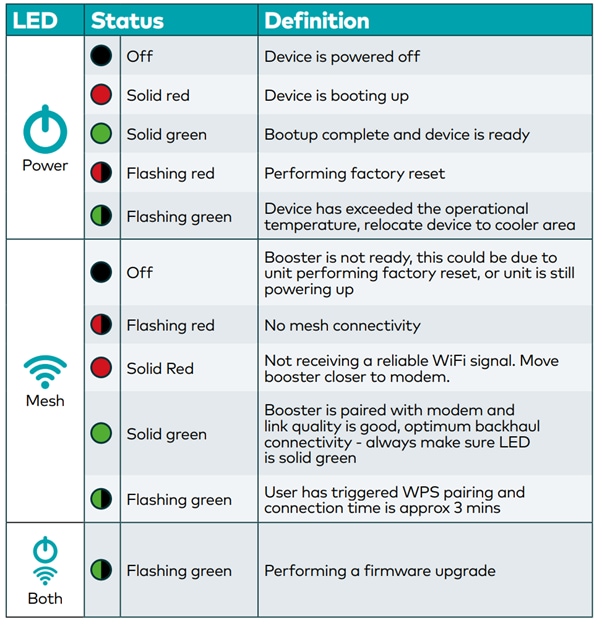
          The LED lights on the front of your booster indicate the status and strength of its connection to your modem.


          See the image below for details on what each light status means.


          Table displays images to show: The LED power button will be black if the device is off. It'll be solid red if the device is booting up. It'll be solid green if the device is ready. It'll be flashing red when doing a factory reset. It'll be flashing green if it's exceeded the operational temperature, relocate device to cooler area. The LED mesh button will be back if it's off. It'll flash red if there's no connectivity. It'll be solid red it's not receiving a reliable signal. It'll be solid green if it's paired with the modem and the signal is good. It'll be flashing green if the user has triggered WPS pairing and connection time is approx 3 mins. Both LEDs will flash green when performing a firmware upgrade.

          Try these common fixes:

          1. When moving the Booster, the Mesh light will show as flashing or solid Red if the Booster is too far away from the Optus modem:
            1. Reposition the Booster closer to the modem
            2. Try moving the Booster to a higher location, like a bookshelf
            3. Avoid placing the Booster inside cupboards or near thick walls and large appliances
            4. Message us on My Optus app to add another WiFi Booster to reach more rooms
          2. Factory reset the Booster using a pin to press and hold the Reset button until the Power light turns Red:
            1. Allow 2 minutes for the booster to reset
            2. Once complete, the Power light will turn Green, and the Mesh light will flash Red
            3. Follow the above set up instructions to Pair the Booster to your Optus modem
          3. If your home has Ethernet wall ports available, connect the Booster to the modem with cables:
            1. Connect an Ethernet cable from any yellow LAN port on the Booster and into the wall point
            2. Connect an Ethernet cable from any yellow LAN port on your modem to the corresponding port in your communication box
            3. The Booster's Mesh light will turn solid Green when connected

          If you're still having trouble connecting to your Booster and you've followed the steps above, please message us via the My Optus app.

          Related Articles

          Modem user guides for Home & Office Internet

          How to access your Optus 5G Wireless Modem settings

          Home Internet WiFi username & password help

          About the Optus Ultra WiFi Booster

          Setting up the Optus Ultra WiFi 5G Home Internet modem

          Popular articles

          Orders, deliveries & returns

          How to check network status & outages

          Home Internet WiFi username & password help

          Home Internet troubleshooting

          Get in touch

          • Get My Optus app
          • Contact us
          • Find a store

          Need more help?


          Getting started


          Billing and recharge


          Troubleshooting


          Device Guides


          5G Mobile


          Broadband & NBN


          Manage my account


          Optus Sport


          Email


          5G Home Broadband


          Entertainment


          Coverage and travel


          Home phone


          Business


          Consumer advice


          More from Optus

          • My Optus App
          • SubHub
          • Accessories
          • Student Hub

          Customer Service

          • Contact Us
          • Help & Support
          • Store Locator
          • Payment Assistance Policy
          • Feedback & Complaints
          • Report a service outage

          About Us

          • About Optus
          • Careers
          • Corporate Information
          • Media Releases
          • About Singtel
          • Accessibility

          • Blog
          • Connect With Us on facebook
          • Connect With Us on instagram
          • Connect With Us on tiktok
          • Connect With Us on linkedin
          • Connect With Us on twitter
          • Connect With Us on youtube

          • Critical Information Summaries
          • Standard Agreement
          • Privacy, Security & Safety

          Connect with us

          • Blog
          • Connect With Us on facebook
          • Connect With Us on instagram
          • Connect With Us on tiktok
          • Connect With Us on linkedin
          • Connect With Us on twitter
          • Connect With Us on youtube
          • Critical Information Summaries
          • Standard Agreement
          • Privacy, Security & Safety
          © 2026 Singtel Optus Pty Limited
          Optus acknowledges the Traditional Custodians of the lands, waters and skies across Australia. We pay our respects to Elders past and present and honour the strength and continuity of the world's oldest living cultures.