Skip to Primary NavigationSkip to ContentSkip to Footer
  • Personal
  • Business
  • Enterprise
  • Deals
  1. Help & Support - Optus/
  2. Articles/
  3. What do the lights mean on my Home Internet modem?

What do the lights mean on my Home Internet modem?

In the article, we'll show you what the lights indicate on your nbn® equipment and Home Internet modems. 

If you're having an issue connecting to the Internet, you can also see our interactive troubleshooting steps in the My Optus app under Help → nbn troubleshooting tips.


Select your nbn technology type to see what the lights indicate on your nbn equipment. 

You can check your type of connection by entering your address here.

Fibre to the Premises (FTTP)

Here's what each light signal on your Connection Box means and what to do:

Note: If you can't see the lights, remove the cover by pressing the two clips at the base upward, then pulling the bottom of the cover out and up to remove it completely.

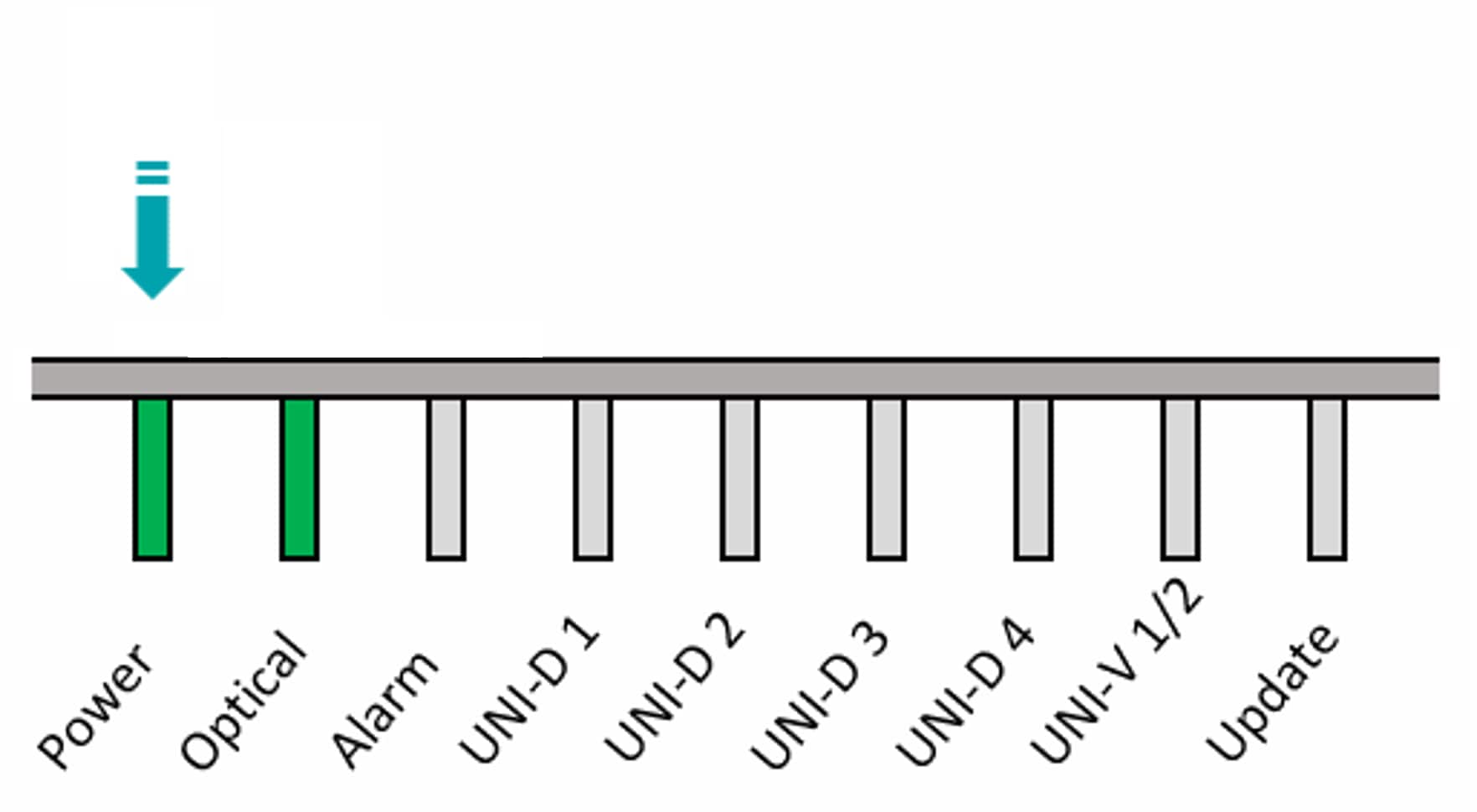
Power lightPowerlight_CB_FTTB

Status

Meaning

Green

• The box has power

• Skip to Check your modem's internet connection section

Flashing green

• The box is starting up – allow 15 mins for setup to finish

Red

• The box is running on battery

• The internet connection won’t work until the power is turned back on

Off

• Check the Connection Box power cable is securely plugged in to a power point and the power point is switched on

• Plug your Connection Box directly into a power board

• If there's still no power, message us or call 133 937 for help

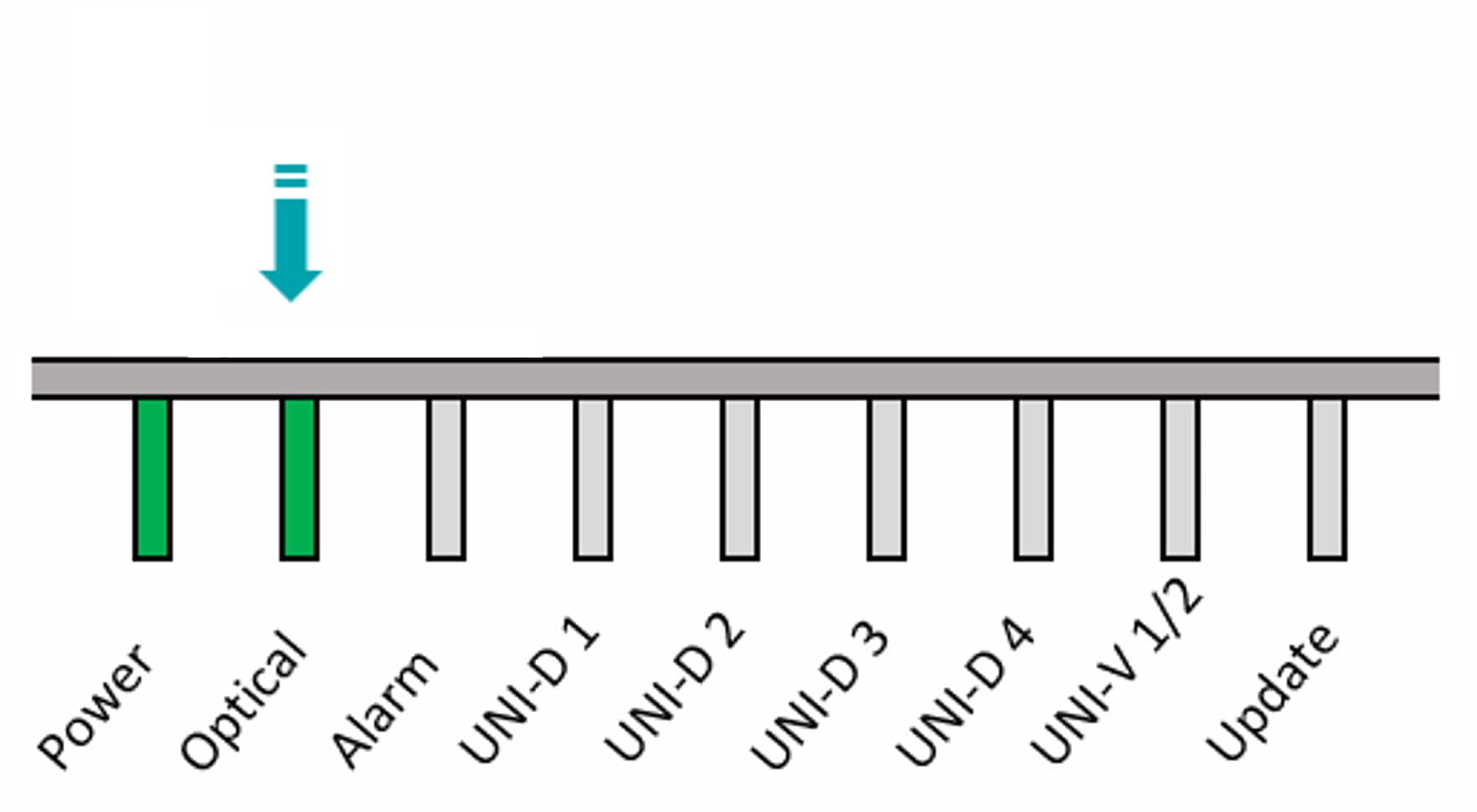
    Optical light

    OpticalLight_CB_FTTB

    Status

    Meaning

    Solid green

    • The box is connected to the network

    • Skip to Check your modem's internet connection section

    Flashing green

    • The box is connected and sending data. This is normal

    • Skip to Check your modem's internet connection section

    Red

    • The box has lost connection

    • Message us or call 133 937 for help

    Off

    • The box has lost connection

    • Message us or call 133 937 for help

      Fibre to the Curb (FTTC)

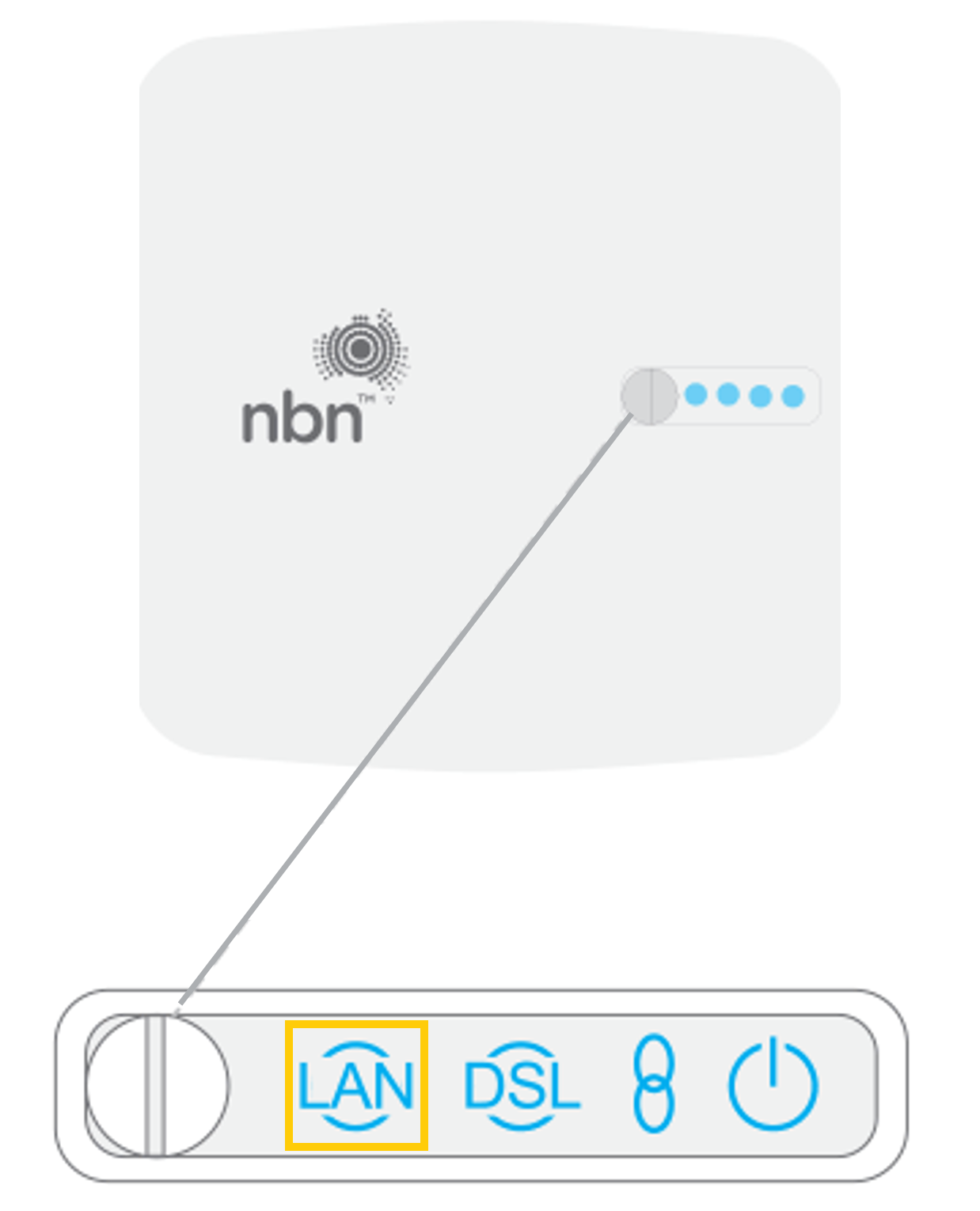
      Here's what each light signal on your Connection Device means and what to do:

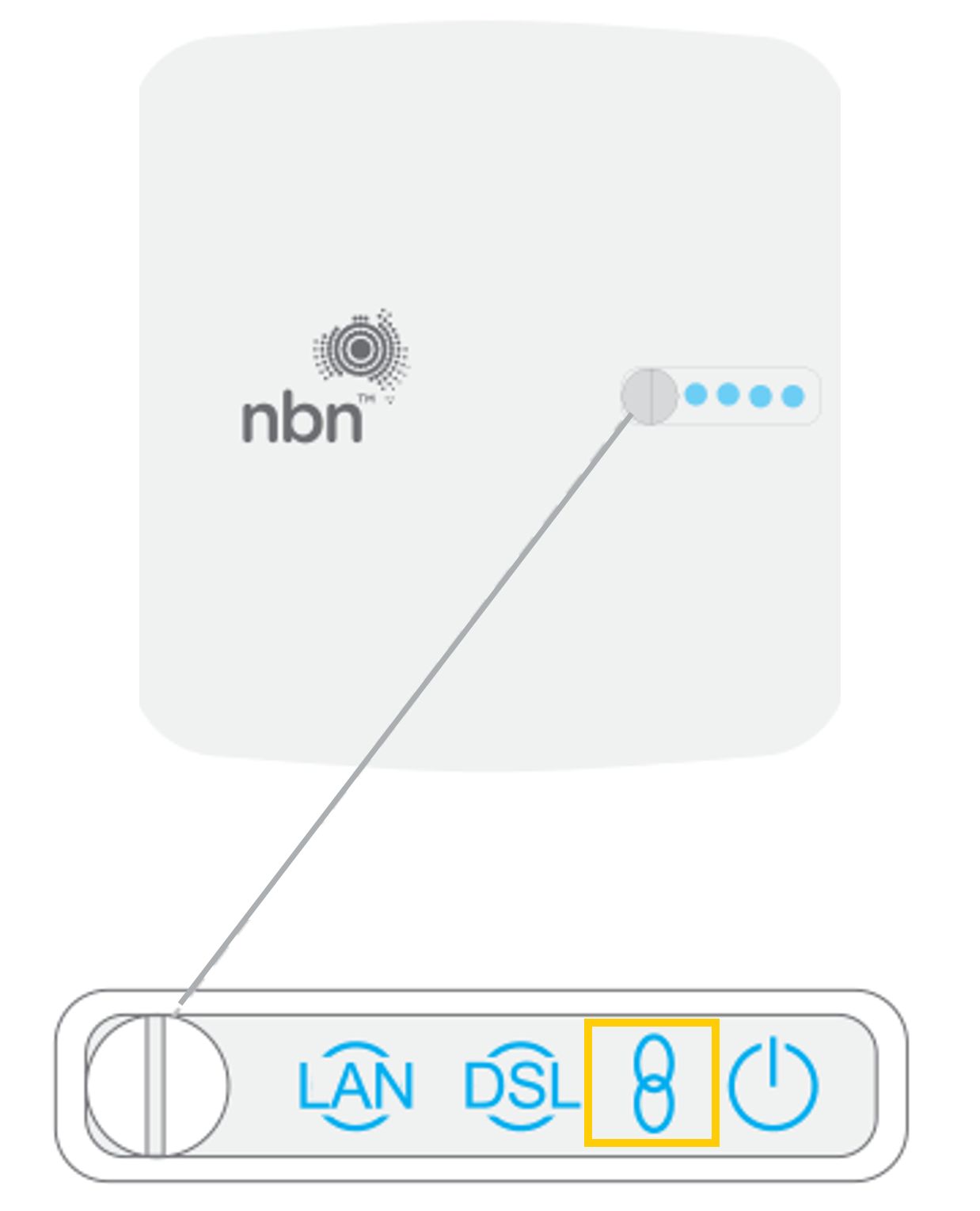
      Connection light displayFTTC1_CDLightstatus

        Status

        Action

        Off

        • Make sure the cable connecting the Device to the wall socket is securely connected and in good order

        • Plug your Connection Box directly into a wall socket (not a power board)

        Solid / blinking red

        • There is no connection to the nbn network

        • Message us or call 133 937 for help

        Blinking blue

        • The Device is in the process of setting up

        • Wait for the light to turn steady blue then test your internet connection

        Solid blue

        • The Device is connected

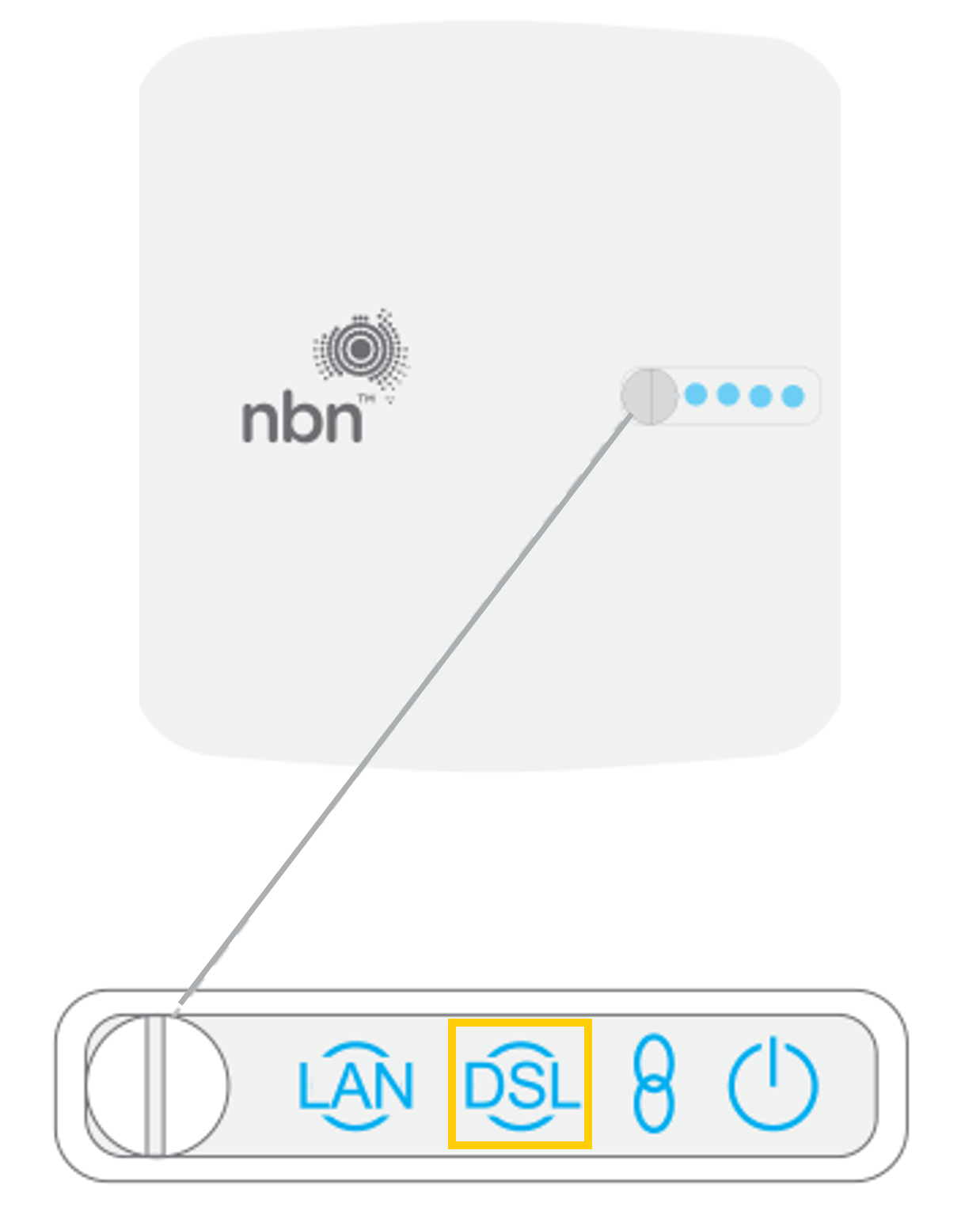
        DSL / Internet lightFTTCDSL_CDLightstatus

          Status

          Action

          Off

          • There's no connection to the internet

          • Message us or call 133 937 for help

          Blinking blue

          • The Device is in the process of setting up

          • Wait for the light to turn steady blue then test your internet connection

          Solid blue

          • The Device is connected

          LAN lightFTTCLAN_CDLightstatus

            Status

            Action

            Off

            • Check that the nbn Connection Device is plugged into the WAN / Internet port of your modem

            Blinking blue

            • Your Connection Device and modem have a secure connection

            nbn Cable

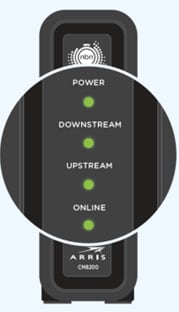
            Here's what each light signal on your Connection Device means and what to do.

            Light displaynbnCable_lights

            Status

            Meaning / action

             All lights are steady green

            • Your nbn Connection Box is working

            Online: Off
            Downstream / DS: Flashing
            Upstream / US: Flashing

            • There's no internet connection

            • Check the nbn Connection Box is securely plugged in and power point is switched on

            • Ensure the coaxial cable connecting your nbn Connection Box to the wall is securely screwed in at each end

            • If you're still not connected to the internet, message us or call 133 937 for help

            Online: On
            Downstream / DS: Flashing
            Upstream / US: Flashing

            • Your nbn Connection Box is updating its firmware

            • Allow up to 30 mins for the update to complete and the lights to return to steady green

            Fixed Wireless

            Here's what each light signal on your Connection Box means and what to do:

            Light

            Action

            Power

            Off: Check the Connection Box is plugged in and the power is switched on

            Red: The connection Box is running on battery power and the battery is low

            Solid / flashing green: Connection Box is operating normal

            Status

            Red: Reset the Connection Box by turning it off at the power point, waiting 30 seconds then turning it back on. Allow a few minutes for the lights to settle into a stable pattern

            Blinking amber: The device is starting up. Wait for the light to settle to a steady green, then try your internet connection again

            Solid / flashing green: Connection Box is operating normal

            ODU

            Solid red: Reset the Connection Box by turning it off at the power point, waiting 30 seconds then turning it back on. Allow a few minutes for the lights to settle into a stable pattern. If the ODU light stays red after the reset, message us or call 133 937 for help

            Blinking red:  There is an error. Message us or call 133 937 for help

            Solid / flashing green: Connection Box is operating normal

            Signal Indicator

            The colour of the light (red, amber or green) indicates the strength of the wireless signal. No action is necessary for this light

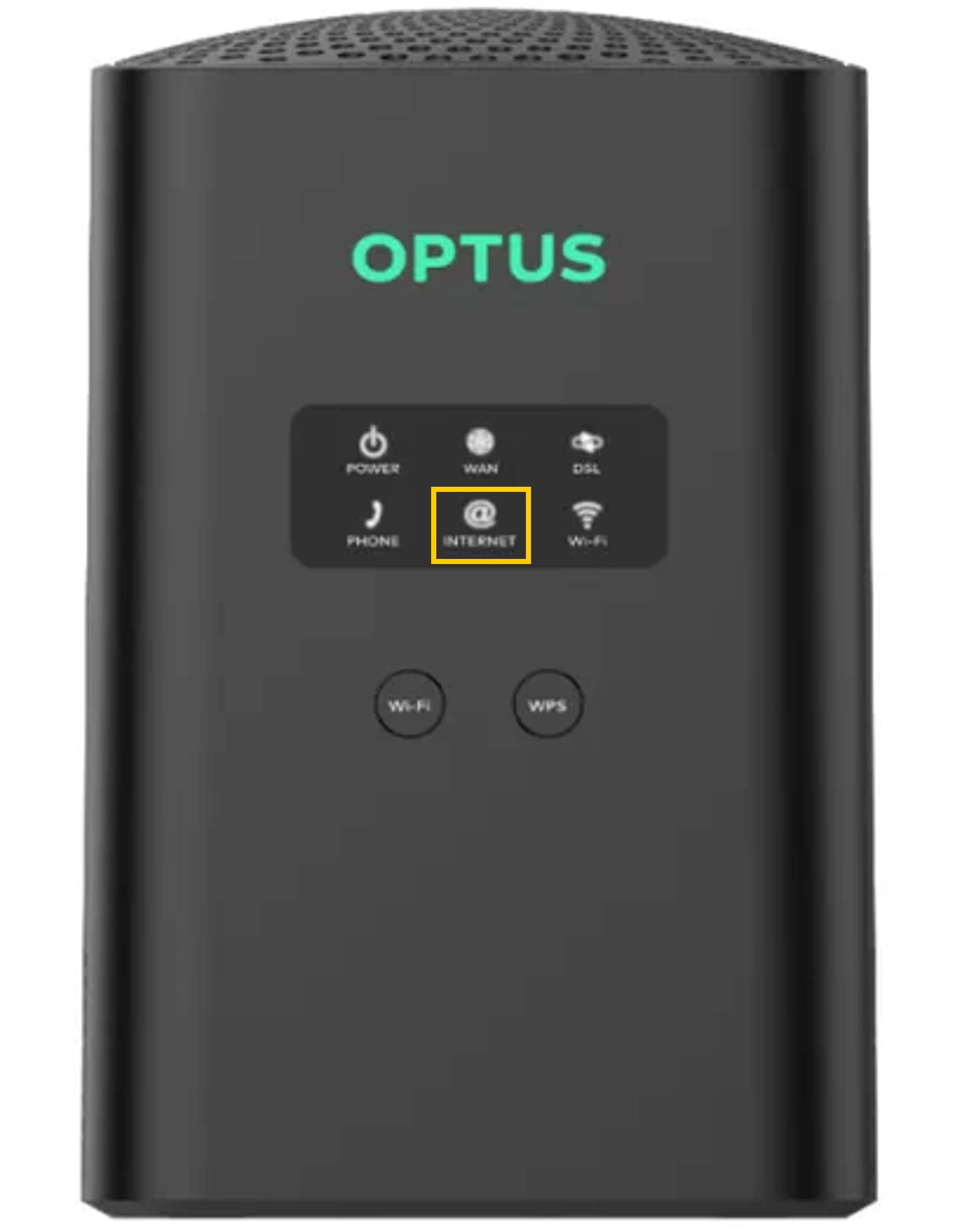
            Check your modem's Internet light:

            • On: You have an Internet connection
            • Off: Check the cable connecting your modem to your wall socket / nbn equipment is securely plugged in at each end, then restart your modem

            Optus Ultra WiFi (Gen 2) modem

            Optus Ultra WiFi (Gen 1) modem

            Sagemcom F@st 5366 TN modem

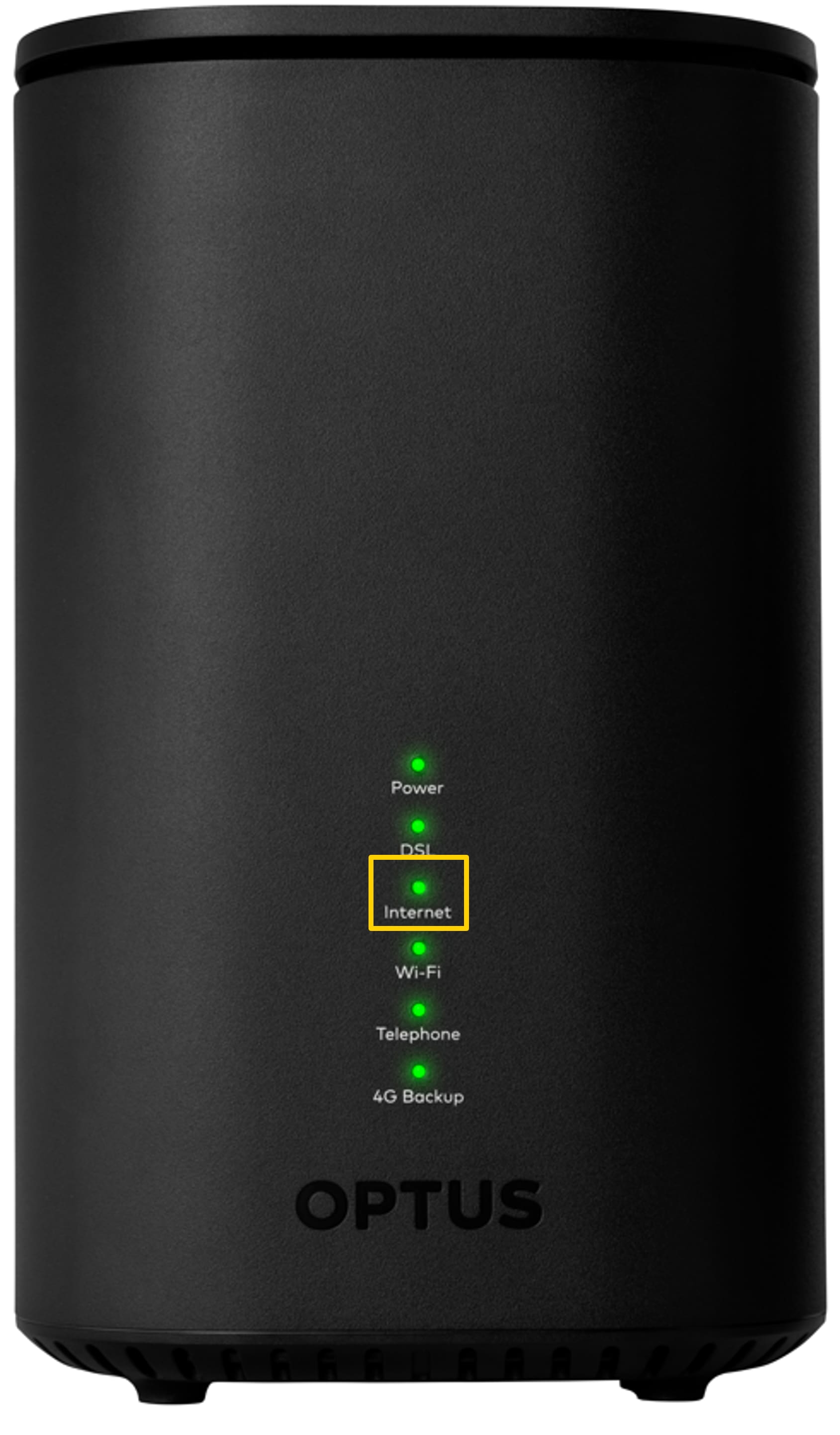
            Optus Ultra WiFi (Gen 2) modem | Front panel image - Internet light

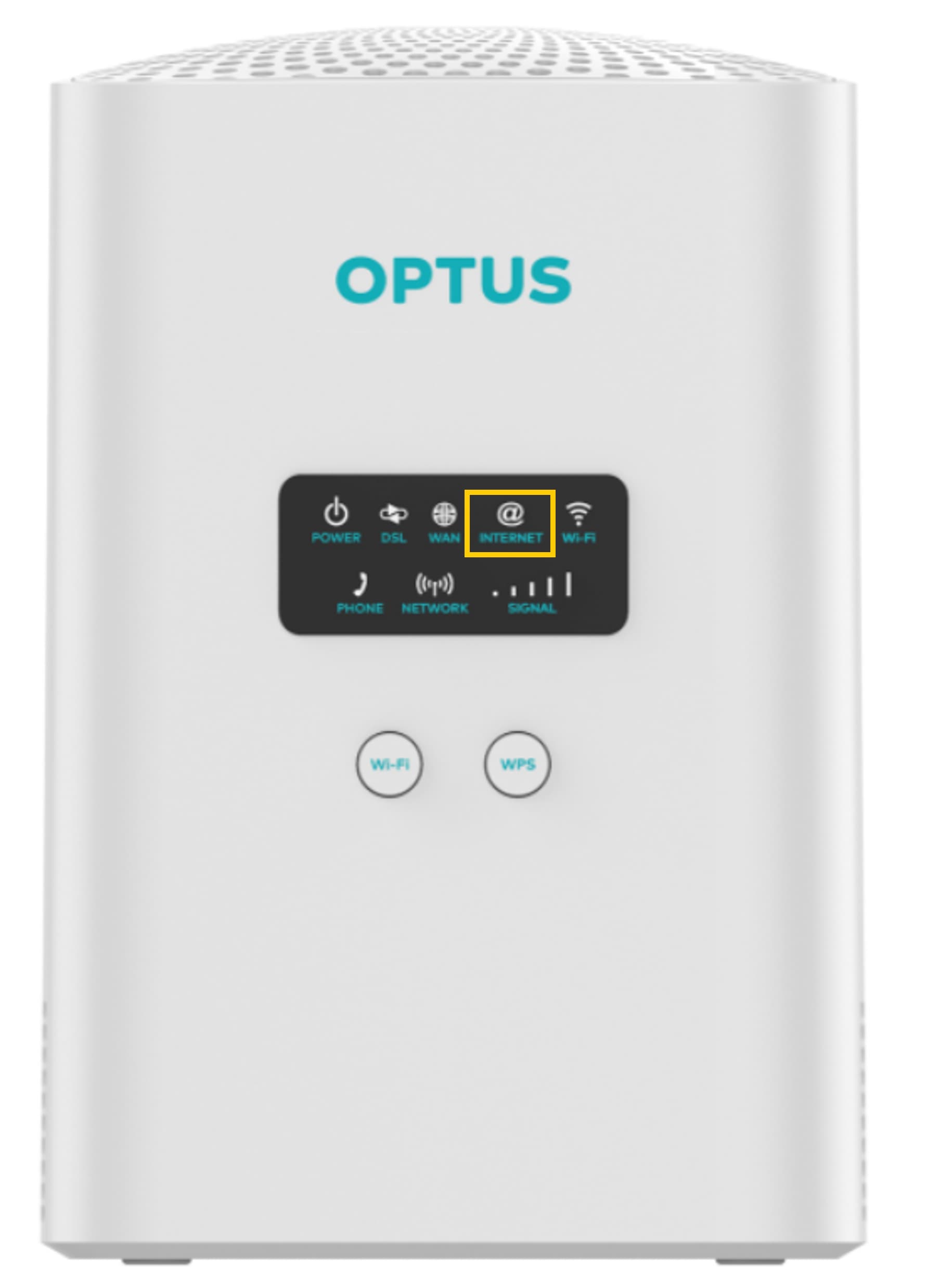
            Sagemcom F@st 5366 Ultra WiFi | Front view

            Sagemcom F@st 5366 TN | Front view

            If you're using a non-Optus supplied modem, see Setting up your BYO modem for help. 

            Here's what each light signal on your modem means:

            Indicator

            Status

            Description

            Power

            Solid green

            On, modem PSU plugged in and powered up

            Device is powered off

            Off, no power

            DSL

            Solid green

            Sync successful

            Flashing green

            Sync in progress

            Off

            No sync

            Internet

            Solid blue

            LTE up with WAN IP address

            Flashing blue

            LTE activating

            Solid red

            DHCP timout after 10 miutes, DHCP error, etc (Note. DHCP protocol will be persistent even with red LED)

            Solid green

            WAN or XSL IP address assigned

            Flashing green

            DHCP handshake in progress

            Off

            No connectivity and no WAN IP address

            Wi-Fi

            Solid blue

            2.4GHz and 5GhZ with bank steering turned off

            Solid green

            Band steering on

            Flash blue / green

            WPS pairing mode

            Telephone

            Solid green

            SIP session provisioned and registered successfully

            Flashing green

            SIP accounts are provisioned and registered successfully. Phone is in off-hook state

            Solid red

            SIP accounts are provisioned but registered failed

            Off

            No SIP accounts provisioned

            4G Backup

            Solid red

            No signal or no connection (e.g. no SIM, invalid SIM etc)

            Solid green

            Good signal and medium signal

            Solid orange

            Poor signal

            1. Check that WiFi is on:

              • If WiFi light is OFF, turn your modem’s WiFi button ON

              • Make sure your computer / device also has WiFi turned ON

            2. Reset the connection:

              •  Turn your modem and your computer off and leave them off for 60 seconds

              • Turn both devices back on and allow a few minutes for them to reconnect

            3. Connect via Ethernet cable

              • Use an Ethernet cable to connect your computer directly to your modem, then test your Internet connection

              • If you can connect via ethernet, you have identified an issue with your WiFi setup. See your modem user guide for help with your WiFi connection

            If you're still unable to connect to the Internet, message us or call 133 937 for help.

            Related Articles

            How to pay your bill

            How to change plans

            How to view your Optus bill

            My Optus service is not working: troubleshooting index

            A guide to eSIM

            Popular articles

            Orders, deliveries & returns

            How to check network status & outages

            Home Internet WiFi username & password help

            Home Internet troubleshooting

            Get in touch

            • Get My Optus app
            • Contact us
            • Find a store

            Need more help?


            Getting started


            Billing and recharge


            Troubleshooting


            Device Guides


            5G Mobile


            Broadband & NBN


            Manage my account


            Optus Sport


            Email


            5G Home Broadband


            Entertainment


            Coverage and travel


            Home phone


            Business


            Consumer advice


            More from Optus

            • My Optus App
            • SubHub
            • Accessories
            • Student Hub

            Customer Service

            • Contact Us
            • Help & Support
            • Store Locator
            • Payment Assistance Policy
            • Feedback & Complaints
            • Report a service outage

            About Us

            • About Optus
            • Careers
            • Corporate Information
            • Media Releases
            • About Singtel
            • Accessibility

            • Blog
            • Connect With Us on facebook
            • Connect With Us on instagram
            • Connect With Us on tiktok
            • Connect With Us on linkedin
            • Connect With Us on twitter
            • Connect With Us on youtube

            • Critical Information Summaries
            • Standard Agreement
            • Privacy, Security & Safety

            Connect with us

            • Blog
            • Connect With Us on facebook
            • Connect With Us on instagram
            • Connect With Us on tiktok
            • Connect With Us on linkedin
            • Connect With Us on twitter
            • Connect With Us on youtube
            • Critical Information Summaries
            • Standard Agreement
            • Privacy, Security & Safety
            © 2026 Singtel Optus Pty Limited
            Optus acknowledges the Traditional Custodians of the lands, waters and skies across Australia. We pay our respects to Elders past and present and honour the strength and continuity of the world's oldest living cultures.