Skip to Primary NavigationSkip to ContentSkip to Footer
  • Personal
  • Business
  • Enterprise
  • Deals
  1. Help & Support - Optus/
  2. Articles/
  3. Switch paper bills on or off

Switch paper bills on or off

In this article we'll explain the different options available for receiving your Optus bill.

Note: If you choose paper bills, you'll be charged a $2.20 paper invoice fee for each paper bill.
You can switch between paper, email or SMS bills via the My Optus app or through My Account.

My Optus app
  1. Open the My Optus app
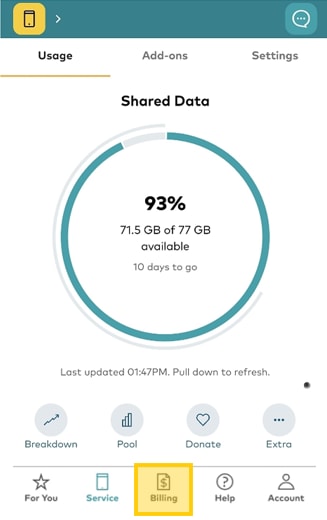
  2. Click the Billing tab
    Select billing tab in the My Optus app

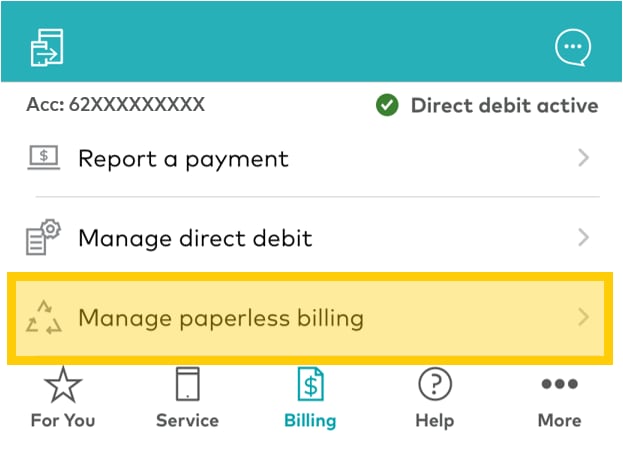
  3. Select Manage paperless billing
    How to manage paperless billing in the My Optus app

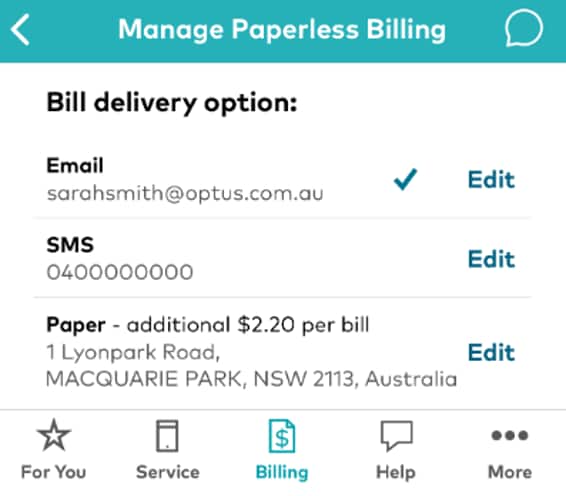
  4. Choose your Bill delivery option
    Select your bill delivery option in the My Optus app
My Account
  1. Log into My Account
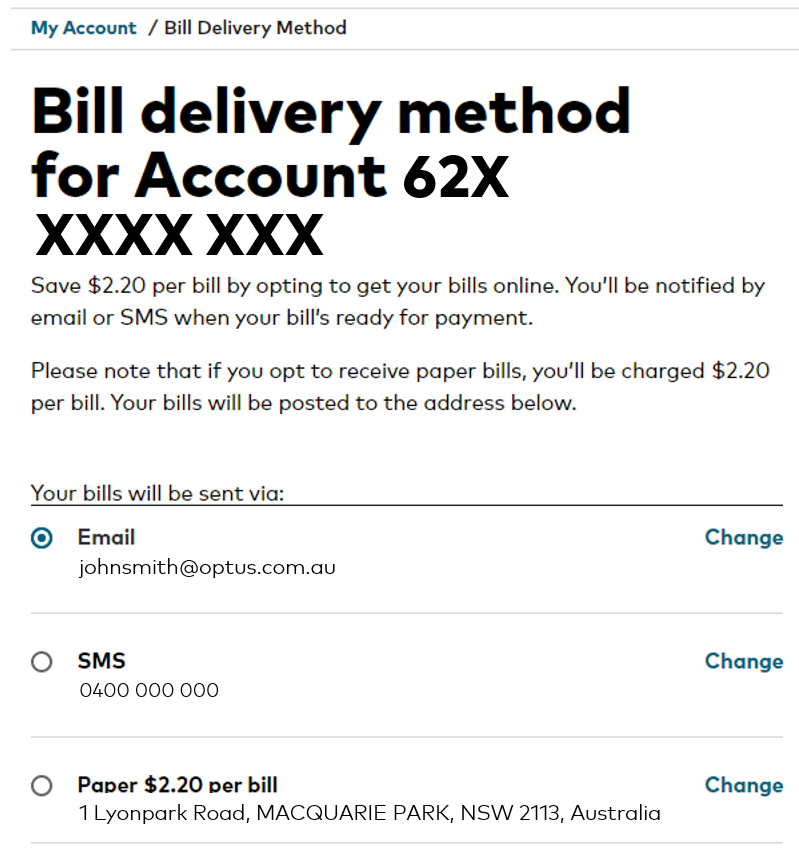
  2. Select Bill delivery
  3. Choose how you'd like to receive your bill and click Save
    Choose method for receiving your bill in My Account

Paper bills will be posted to your bill's postal address.

Wrong postal address?: You can change your bill's postal address at any time in My Optus app or My Account using the instructions under the Update your contact details tab below.

Note: You'll be charged a $2.20 paper invoice fee for each paper bill.
If you choose email bills, you'll be sent an email each month with the amount owing, the due date and a PDF version of your bill attached to the email. By choosing to receive your bill via email, you avoid any billing fees.

Note: Your email address must be verified to receive email bills. If your email address isn't verified you won't receive the PDF and need to access your current bill invoice via My Account. To verify your email address, please contact us and we'll send you another verification email.

Wrong email address?: You can update your email address at any time in My Optus app or My Account using the instructions under the Update your contact details tab below.

If you choose to receive your bill via SMS, you'll be notified via SMS when your bill is available for viewing and payment.

You'll be directed to view and pay your bill via the My Optus app or online using My Account.

By choosing to receive your bill via SMS, you avoid any billing fees.

Wrong mobile number?: You can update your mobile number at any time in My Optus app or My Account using the instructions under the Update your contact details tab below.

You can update the mobile phone number, email, or postal address your bill is sent to in the My Optus app or through My Account.

My Optus app
  1. Open the My Optus app
  2. Click the Billing tab
    Select billing tab in the My Optus app

  3. Select Manage paperless billing
    How to manage paperless billing in the My Optus app

  4. Choose your Bill delivery option
  5. Click Edit
    Select your bill delivery option in the My Optus app

  6. Fill in the phone number / email address / postal address you want to receive your bill
  7. Click Save

My Account
  1. Log into My Account
  2. Select Bill delivery
  3. Select Change to update your details
    Choose method for receiving your bill in My Account

  4. Enter your new contract details and select Save
  5. Choose how you'd like to receive your bill and select Save

You can also request large font billing if you're blind or have vision impairment.

Learn how to view and print your bills here.

Click here for more billing help.

Related Articles

How to pay your bill

How to change plans

How to request more time to pay your bill

A guide to eSIM

Home Internet WiFi username & password help

Popular articles

Orders, deliveries & returns

How to check network status & outages

Home Internet WiFi username & password help

Home Internet troubleshooting

Get in touch

  • Get My Optus app
  • Contact us
  • Find a store

Need more help?


Getting started


Billing and recharge


Troubleshooting


Device Guides


5G Mobile


Broadband & NBN


Manage my account


Optus Sport


Email


5G Home Broadband


Entertainment


Coverage and travel


Home phone


Business


Consumer advice


More from Optus

  • My Optus App
  • SubHub
  • Accessories
  • Student Hub

Customer Service

  • Contact Us
  • Help & Support
  • Store Locator
  • Payment Assistance Policy
  • Feedback & Complaints
  • Report a service outage

About Us

  • About Optus
  • Careers
  • Corporate Information
  • Media Releases
  • About Singtel
  • Accessibility

  • Blog
  • Connect With Us on facebook
  • Connect With Us on instagram
  • Connect With Us on tiktok
  • Connect With Us on linkedin
  • Connect With Us on twitter
  • Connect With Us on youtube

  • Critical Information Summaries
  • Standard Agreement
  • Privacy, Security & Safety

Connect with us

  • Blog
  • Connect With Us on facebook
  • Connect With Us on instagram
  • Connect With Us on tiktok
  • Connect With Us on linkedin
  • Connect With Us on twitter
  • Connect With Us on youtube
  • Critical Information Summaries
  • Standard Agreement
  • Privacy, Security & Safety
© 2026 Singtel Optus Pty Limited
Optus acknowledges the Traditional Custodians of the lands, waters and skies across Australia. We pay our respects to Elders past and present and honour the strength and continuity of the world's oldest living cultures.